What is a SSD?
SSDs use
flash memory for data storage. Using NAND flash chips, similar
to the ones used in flash cards or USB drives, SSDs read and write data
electronically. They rely on integrated circuits for data storage and consist
of a transistor grid that stores data on the binary coding system.
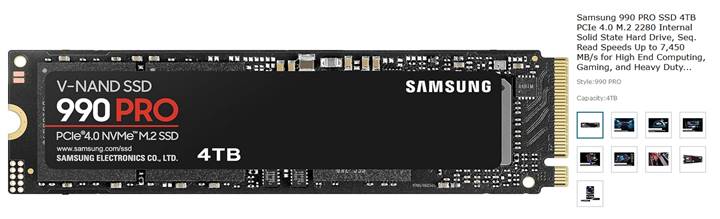
The SSD
relies on an integrated circuit for data storage. It has an electronic
controller and a series of NAND chips. These chips do not need a power supply
for operation. Instead, they consist of a transistor grid that stores data on
the binary coding system. The binary coding system has two states: 0 and 1.
When there is current flowing in the transistors, their state is 1. When there
is no current, the value remains 0. Initially, the transistors are in the 1
state. When the file is written, or a save operation is performed, some
transistors are blocked, and their value becomes 0.
Even if
SSDs are much faster than mechanical hard drives, they have non-volatile
memory. As a result, they become less reliable with time since the transistors
wear out and lose their charge-holding capacity. With growing usage, these
drives become less reliable. By default, SSDs come with a limited lifespan. With
every writing process, the SSD becomes less efficient. This is because to
overwrite data, the existing data must be erased first. For this, NAND chips
require voltage to send electrons through the insulator. With continuous write
and erase cycles, the insulator wears out. Therefore, the flash cells cannot be
programmed and erased indefinitely. Thus, the NAND design and SSD usage
determines how long it will last.
Why
would someone want to use them?
Key
Differences:
A.
SSDs
are significantly faster than HDDs, offering data transfer speeds of 500 MB/s
to over 7,000 MB/s (NVMe), while HDDs generally
manage only 30–150 MB/s
B.
SSDs
provide drastically quicker boot times, faster application loading, and
smoother, faster file transfers due to having no moving parts, making them
ideal for OS and gaming.
C.
HDDs are better suited for, cost-effective,
high-capacity, long-term storage.
Transfer
Speed Comparison:
1.
HDD
(Hard Disk Drive): Generally, 30–150 MB/s, limited by mechanical spinning
disks.
2.
SATA
SSD (Solid State Drive): Up to 550 MB/s, offering over 3x faster speeds than
HDDs.
3.
NVMe
SSD: 3,000–3,500 MB/s, with top-tier drives reaching up to 7,000+ MB/s,
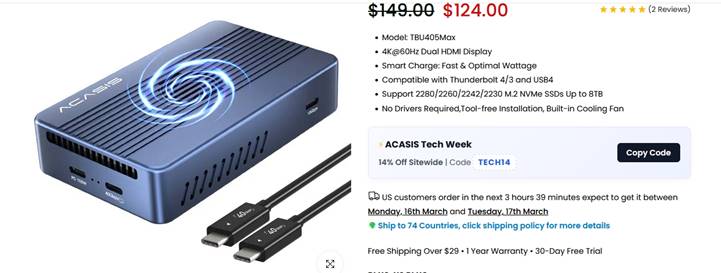
suitable for high-performance needs. I placed the above Samsung SSD into my Acassis and I am getting 7,450
MB/s read speed.
Key Differences Impacting Speed:
1.
Performance:
SSDs can transfer a 20 GB movie in under 10 seconds, compared to over two
minutes for a standard HDD.
2.
Random Access: SSDs have a latency of ~0.15 ms, while HDDs are around 4.2 ms,
making SSDs much more responsive for loading apps.
3.
Use Cases: Use an SSD for the OS and
applications for speed; use an HDD for large, rarely accessed files to save
money.
4.
Don't
use SSDs for long-term storage. They're a terrible place to stash files you
won't touch them for months. They need an electrical field to keep the data on
them refreshed. I have HDD that have been laying around for years and they
still work. I will not try this on an SSD.
Essentially,
SSDs are 10 times faster than average hard drives, making them the superior
choice for overall system responsiveness.
Cost
& Capacity:
HDDs cost less per gigabyte ($0.03/GB) and are better for high-capacity storage
(up to 22TB+), whereas SSDs are costlier ($0.20/GB) but ideal for
high-performance needs. My SSD price is $719 ($0.17975/GB) on Amazon 3/17/26. I
purchased it for $269.99 ($0.06750/GB) on 9/13/25. Almost 3-fold increase in
price. I am sure HD have increased in price too.
Durability
& Reliability:
SSDs have no moving parts, making them more resilient to physical shocks and
drops, whereas the moving parts in HDDs make them more susceptible to damage.
Power & Noise: SSDs consume less power and
operate silently. HDDs can be noisy and consume more energy.
Which one
should you choose?
a)
Choose
an SSD for your operating system, applications, and frequently used files to
get fast load times and a responsive system. If you have enough ram, turn off
the Windows swap file or it may eat a hole into the SSD drive later
b)
Choose an HDD for storing large amounts of
data, such as movies, photos, and backups, where speed is not critical.
c)
Best approach: Use a smaller, fast SSD for
your system drive (e.g., 500GB-1TB) assuming you turn off the swap file paired
with a large HDD for storage.
d)
Applications
that create a lot of temp files need to keep them off the SSD system drive to
protect its life. Video editing software creates lots of temp files and can
wear out SSDs early. Here your HDD may be the best option.
The
life span of an SSD - how long does it last.
SSDs have
a finite write lifespan measured in total Terabytes Written (TBW), typically
lasting 5–10 years for average users. Modern consumer SSDs handle thousands of
write cycles per cell, with endurance often lasting beyond 300–600 TBW for a
1TB drive (roughly 100GB+ daily for over 5 years). Lifespan is determined by
NAND type (TLC/QLC) and usage intensity.
Key
Factors in SSD Lifespan
1.
TBW
(Terabytes Written): The manufacturer-rated limit of data written before the
drive potentially fails. A 250GB drive often has 60–150 TBW, while higher
capacities have higher TBW.
2.
DWPD (Drive Writes Per Day): Indicates how
many times you can overwrite the entire drive capacity daily during the
warranty period.
3.
NAND
Type: SLC (highest endurance, >50k cycles) > MLC (3k–10k) > TLC
(1k–3k) > QLC (lowest).
Wear Leveling: Controllers spread
data evenly across cells to prevent premature failure of specific spots.
How
to Estimate Your SSD's Life
You can
calculate your remaining SSD life using the formula:
Estimated
Lifespan (years)=TBW / Daily Write Amount (TB) × 365
Example: A
300 TBW drive with a daily write of 0.05 TB (50GB) will last 16.4 years ().
However, like all electronic components, SSDs have limited
lifespans that can be affected by a range of different factors. It’s therefore
smart to try to increase their lifespan. Here I lay out some keyways you can do
that in Windows 11 (most work in other versions of windows too.).
1. Enable Trim for SSDs
One simple trick to extend SSD lifespan is to enable the Trim command for your
SSD. This tells the drive which data blocks are no longer used, effectively
managing and freeing up disk space. If you don’t enable the Trim, the SSD needs
to perform extra and unnecessary operations to delete old files, giving rise to
more wear and reducing lifespan.
To check if the Trim command is enabled open the command prompt with admin
rights:
a.
type the command fsutil
behavior query DisableDeleteNotify. If you get
the notification “DisableDeleteNotify = 0” then you
have Trim enabled.
b.
If not, then you can enable it with this
command: fsutil behavior set DisableDeleteNotify 0.
2. Disable hibernation
In hibernation mode the computer will write all the data it stores in the RAM
to a file named Hiberfil.sys on the SSD. If you hibernate your PC often this
file can be extremely large. Excessive and heavy writing can wear out your SSD,
hence you should disable hibernation in Windows 11. To do that:
a.
Open the command prompt with admin permission.
b.
Type the command powercfg.exe
/hibernate off.
3. Disable Paging File (Virtual Memory)
When RAM is insufficient for your computing increasing the virtual memory or
paging file can be one solution. However, this isn’t good for SSD lifespan as
it results in lots of writing to your SSD. Therefore, you’re going to want to
disable paging file to increase the SSD lifespan. Here’s how to do that.
- Press Windows key + R to open the Run dialog box.
- Type sysdm.cpl and
click OK to open System Properties.
- Navigate to the Advanced tab and click on Settings
under the Performance section.
- In the Performance Options window, go to the Advanced
tab and click on Change under the Virtual Memory section.
- Uncheck
the box for Automatically manage paging file size for all drives.
- Select the drive where the pagefile
is located (usually C:).
- Choose the option No paging file and click Set.
- Click OK to close all windows and restart your computer
when prompted.
4. Enable write caching
Most SSDs support write caching that allows temporarily storing data in a
cache, which avoids frequent small writes to the SSD. Enabling this feature
will reduce the number of write cycles and extend the lifespan of your SSD. You
can do that in a few easy steps.
- Type Win+X and choose Device
Manager.
- Expand the disk drives, right click on your SSD,
and select Properties.
- Under the Policies tab, tick Enable write
caching on the device and click OK.
- Write caching should now be enabled.
Write
caching lets your SSD temporarily store incoming data in a faster buffer before
committing it to the NAND flash. It's a small thing, but it makes a difference
in everyday responsiveness, as file copies feel snappier, and app installs move
along quicker.
There
is a danger to doing this. If your system loses power suddenly, such as a
blackout or an accidental plug pull, cached data that hasn't been written yet
could be lost. On a laptop with a battery, this is a non-issue. On a desktop, a
low-cost UPS eliminates the risk and is worth the investment regardless.
5. Avoid filling up the SSD memory
SSDs are fast, but
they don't stay that way forever. Over time, you might notice longer boot
times, sluggish file transfers, or apps that take a bit too long to open. It's
easy to assume the drive is dying, but that's rarely the case. Most SSD
slowdowns come down to a handful of fixable issues, from a full drive to
mistakes that shorten your SSD's lifespan, but the fixes are straightforward
once you know where to look.
SSDs need
free space to work properly. Unlike hard drives, they can't just overwrite old
data — they must erase entire blocks before writing new ones. This process,
called garbage collection, relies on having empty blocks available. When your
drive is more than 90% full, the controller runs out of room to shuffle data
around efficiently, and write speeds take a noticeable hit. This constant
shuffling, known as write amplification, reduces write speeds.
I've seen
this firsthand on my own system. After letting my C: drive creep past 90%
capacity, file transfers slowed, and basic tasks felt a bit sluggish. Freeing
up space brought the speed right back. The fix here is to keep at least 10-20%
of your SSD's total capacity free. You can use a tool like WizTree
to find what's eating your space or move large game libraries and 4K video
files to a secondary storage drive. If you use Windows, also ensure Storage
Sense is active to automatically purge temporary files that accumulate over
time.
If the SSD memory is filled up, it can reduce the SSD
lifespan and the drive will run a lot slower than it should. Therefore, you
should aim to always keep at least 20 percent of the drive’s capacity free.
You can check on how full your drive is in Windows under Devices and Drives.
Simply double click on File Explorer and select This PC from the menu on the
left. The capacity of the drive will be shown beneath the drive visual and how
much free space there will be indicated clearly too.
6. Keep the SSD firmware up to date
SSD manufacturers often release updates for the SSD firmware to keep it running
efficiently and to reduce wear and tear, so these updates can extend the
device’s lifespan. To see if your SSD does, it’s best to visit the
manufacturer’s website to search for any firmware updates. Most vendors will
also have their own SSD software to update firmware automatically.
SSD
manufacturers release firmware updates that fix bugs, improve compatibility,
and optimize how the drive manages data. Most people never think about updating
their SSD's firmware — it's not as visible as a Windows update — but running an
outdated version can cause random slowdowns, stuttering, and even stability
issues. I updated the firmware on my Samsung 980 Pro a while back, and the
difference in sustained write speeds was immediately noticeable. It's one of
those things you don't realize is dragging you down until you fix it.
The
easiest way to check is through the manufacturer's dedicated tool. Download
your SSD manufacturer's management software — Samsung Magician, Crucial Storage
Executive, or Intel Memory and Storage Tool, depending on your drive. Open the
tool and navigate to the firmware section. If an update is available, follow
the on-screen prompts to install it.
Back
up your data before applying any firmware update. A failed update is rare, but it
can brick the drive, and that's not a risk worth taking without a safety net.
7. Your SSD might be overheating under heavy loads
Thermal throttling is common, but a heatsink solves it
If you’re using a high-end Gen 4 or Gen 5 NVMe SSD,
heat is a significant factor in performance. When temperatures climb too high
during sustained reads or writes, the drive throttles its own performance to
avoid damage. This is called thermal throttling, and it's more common than
you'd think, especially in laptops with poor airflow or desktop builds where
the M.2 slot sits right next to a hot GPU.
The symptoms are predictable since performance starts strong but drops off
sharply during large file transfers or extended gaming sessions. If you're
seeing that pattern, heat is likely the issue. You can monitor your SSD's
temperature using CrystalDiskInfo or your
manufacturer's tool. If it regularly exceeds 70°C under load, you've got a
thermal problem.
The most effective fix is adding an M.2 heatsink. Most NVMe
drives don't ship with one, but aftermarket heatsinks are cheap and easy to
install — they clip or screw directly onto the drive. Many modern motherboards
also include built-in M.2 heatsinks. Check your motherboard box before buying
one separately.
8. Your SSD's health might be declining
Checking your drive's wear level takes two minutes
Every SSD has a finite lifespan. The NAND flash cells inside your drive can
only handle a certain number of write cycles before they wear out. Under normal
use, like browsing, office work, and casual gaming, most SSDs last well beyond
five years. But heavy workloads like video editing or running virtual machines
accelerate that wear considerably.
As the cells degrade, the drive slows down before eventually switching to a
read-only state or failing altogether. The good news is that you don't have to
guess where your drive stands. To check your SSD's health:
- Download CrystalDiskInfo. It's free and works with virtually every drive.
- Open it and look for the Health Status indicator and
the Total Host Writes value.
- Compare the total writes against your drive's rated TBW
(terabytes written), which you can find on the manufacturer's spec sheet.
If you're unsure how to interpret these numbers, here's how to estimate the
remaining lifespan of your SSD. Also, if health status drops below 70–80%,
start planning a replacement and back up your data immediately. If the health
looks fine but performance is still poor, the slowdown is almost certainly
caused by one of the other issues covered above, not the drive itself dying.
Most SSD slowdowns aren't hardware failures; they're due to neglected settings
and overlooked maintenance. The fixes mentioned often take as little as 15
minutes combined. What's worth doing beyond this is to set a calendar reminder
every few months to check your drive's health and temperature, clear out
unnecessary files, and look for firmware updates.
If you're building a new PC, budget for a heatsink and a UPS from the start,
and check these things before buying your NVMe SSD.
Prevention is always cheaper than a replacement drive and far less stressful
than recovering lost data.